New vehicles go into service with their maintenance plan ready.
Roadworthiness test, safety inspection, service, brake fluid: what a vehicle needs in maintenance depends on its vehicle type and drive — not on the memory of whoever creates it. Maintenance profiles record that once. When a vehicle goes into service, its plans with their first due date are already in the dialog.
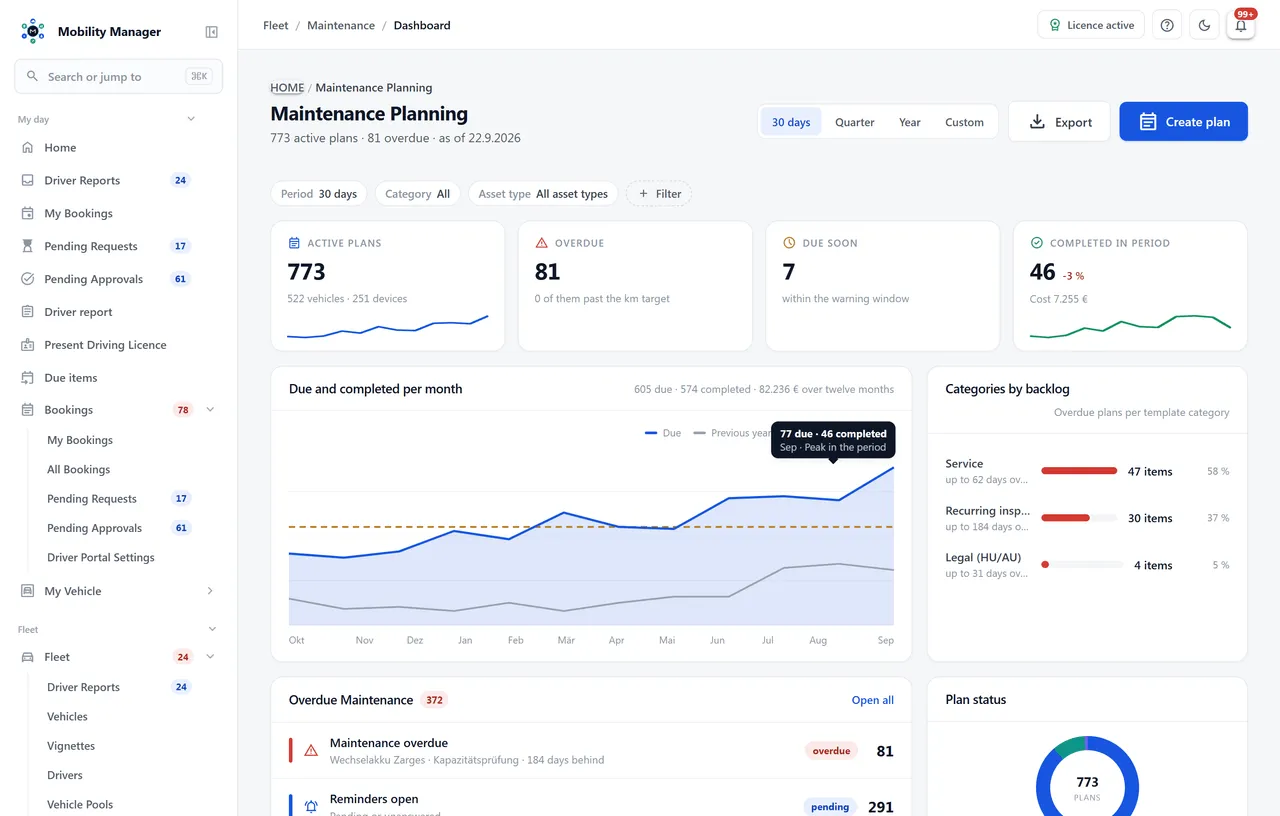
A missing maintenance plan only shows once the date has passed
A maintenance plan that does not exist reminds nobody. That gap opens with every new vehicle as long as plans are created by hand.
A new van needs a roadworthiness test, a safety inspection, the manufacturer's service, a brake fluid change, an A/C service and the seasonal tyre change — six plans with six intervals. A trailer needs two of them, an electric vehicle a service with a longer interval. A fleet taking on twenty vehicles a year creates over a hundred plans and has to know the right combination every single time.
If one is missing, nobody notices: the maintenance overview only shows what is planned. The gap surfaces at the next audit or after an accident — together with the question why the safety inspection never took place.
Define once, apply to every vehicle
A maintenance profile is the bundle of templates a group of vehicles needs. Commissioning does the rest.
Define the profile once
A maintenance profile states which vehicles it applies to — vehicle type, drive or both — and which maintenance templates belong to it. It takes intervals from the template or overrides them: for an electric vehicle, the service every 24 instead of 12 months.
Put the vehicle into service
Whether an ordered vehicle is delivered or a vehicle is created straight into service: the dialog shows the matching maintenance plans with their first due date, preselected. Untick what does not fit — the rest is created on save.
Plans run on their own
From then on every plan computes its due date by time, mileage or meter, appears on the dashboard and in the vehicle's due-dates list, and reminds in time. The vehicle history records which profile created which plans.
Four profiles cover a mixed fleet
This is what a typical set looks like. If several profiles match, all apply; if two contain the same template, the one with the lower order wins — here the EV profile with its longer service interval.
Statutory inspections that do not apply to a vehicle are left out automatically: no emissions test on a trailer, no ATP inspection without a refrigerated body, no gas system inspection on an electric vehicle. The proposal shows these rows with the reason, so nobody has to guess.
You decide how much automation you want
One switch for the whole fleet, set by fleet management.
ProposeDefault
The dialog lists the matching plans preselected. What is confirmed gets created. The right choice for most fleets: nobody has to remember the plans, and a person still decides.
Automatic
All matching plans are created without asking — also when a retired vehicle is reactivated. For fleets with clear rules and many new vehicles.
Off
No automation. Profiles stay usable: in the vehicle file via "Apply maintenance profiles" and for the fleet via "Apply to fleet".
Every plan starts with a date, not an empty field
A plan without a due date never reminds. So the profile calculates the first due date when the plan is created — and the dialog shows it before you confirm:
- Date — commissioning plus interval. If that lies in the past, the interval counts from today.
- Roadworthiness test and safety inspection — if the vehicle already carries a date, it is used. The inspection report beats the interval.
- Mileage — current odometer plus interval, so the delivery reading for a new vehicle.
- Operating hours and starts — meter reading plus interval, once the meter is activated on the vehicle.
Also the vehicles already on the road
Profiles do not only help with new vehicles. With "Apply to fleet"you first see, for one profile, which vehicles in service match and which plans are missing — plate by plate. Only on confirmation are they created, in one step. What is already planned stays as it is; only vehicles within your location data view are included.
For a single vehicle the same choice is in the vehicle file:"Apply maintenance profiles" on the maintenance tab. Every assignment is recorded in the vehicle's history — with the profile the plans came from.
What happens after the assignment
Plans from a profile are ordinary maintenance plans. Everything else maintenance planning does applies to them just the same.
Inspection intervals as a rule set
When a vehicle is due for its statutory inspection follows from vehicle type, first registration and the previous inspection. The rule set is configurable per tenant and computes the next date itself.
Time, mileage, meter
Due dates by date, mileage, operating hours or starts — or whichever comes first. For a street sweeper or a refrigerated body the hour counts, not the kilometre.
Odometer readings from many sources
Mileage-based intervals read the vehicle's odometer — entered by hand, in bulk, from driver reports, refuellings or the fuel card import.
Work orders and history
Completed services stay on the vehicle with date, odometer, cost and workshop. Work orders with line items are handled by workshop management.
Reminders and workflows
Due roadworthiness tests, safety inspections and maintenance plans trigger reminders; workflow rules send e-mails or create tasks in the vehicle file.
Proof in the legal register
An obligation such as the annual safety inspection is linked to its maintenance template — its fulfilment status then comes from the active plans.
What maintenance profiles do not do
Four points you would find in any serious evaluation anyway — so they are here.
Vehicles only, not devices
Maintenance profiles apply to vehicles. Devices and installations receive their inspections through the templates of their device type in device management.
No back-sync
A profile creates plans, it does not own them. If you change an interval in the profile later, existing plans stay as they are; deleted profiles leave their plans in place.
Scope: vehicle type and drive
Profiles distinguish by vehicle type and drive type. Location, make or leased versus owned are not a criterion today.
Interfaces confirm nothing
In "Propose" mode a plan is only created after confirmation in the dialog. Vehicles created by import or interface then get their plans via "Apply to fleet" — or you switch to "Automatic".
Maintenance profiles and maintenance planning
Whenever a vehicle goes into service: when a vehicle is created as in service, when an ordered, planned vehicle is commissioned and — in "Automatic" mode — when a retired vehicle is reactivated. Planned vehicles deliberately get no plans yet, so no reminders run for a car that has not been delivered.
All of them apply. An electric van gets the plans from "Cars & vans" and from "Electric vehicles". If two profiles contain the same template, the profile with the lower order number wins — including its interval. That is how a general bundle is overridden for one drive type.
From the commissioning date plus the interval of the template or the profile. If the vehicle already carries a date for its roadworthiness test or safety inspection, that date is used. The mileage target is the current odometer plus the interval; for operating hours and starts it is the activated meter's reading. A vehicle that has been running for years gets no date in the past, but one counted from today.
No. If the vehicle already has a plan for a template, that template is skipped — even if someone deliberately deactivated the plan. The proposal shows such rows as "already planned". Statutory inspections that do not apply to the vehicle, such as the emissions test on a trailer or the gas system inspection on an EV, are left out as well.
No. "Apply to fleet" first shows, for one profile, which vehicles in service match and which plans would be created, then creates them in one step. Only vehicles within your location data view are included; what is already planned stays untouched. Individual vehicles can be brought up to date in the vehicle file via "Apply maintenance profiles".
Profiles are maintained by whoever may manage maintenance templates. Creating plans from profiles requires the same permission as creating maintenance plans. The Off, Propose or Automatic mode can only be set by whoever manages tenant settings — it is a decision for the whole fleet.
Maintenance profiles are part of maintenance planning, which is included in both editions. MobilityManager is bought as a perpetual licence per vehicle, with unlimited users and drivers. Prices are on the pricing page.
The building blocks in detail
Maintenance planning
Templates, plans by time, mileage or meter, inspection intervals as a rule set and service history.
ModuleVehicle management
The vehicle file with its lifecycle: planned, in service, retired — and the step in between.
ModuleWorkshop management
Work orders with line items, appointments and status — from plan to invoice.
ModuleLegal register
Obligations whose fulfilment status comes from maintenance plans, instructions and credentials.
ModuleWorkflow automation
Reminders, e-mails and tasks triggered by due dates and vehicle lifecycle events.
PricingPricing & editions
Perpetual licence per vehicle, maintenance planning included in both editions.
See how a new vehicle gets its plans.
30 minutes on the running system: create a maintenance profile, commission an ordered vehicle and find its plans on the dashboard.